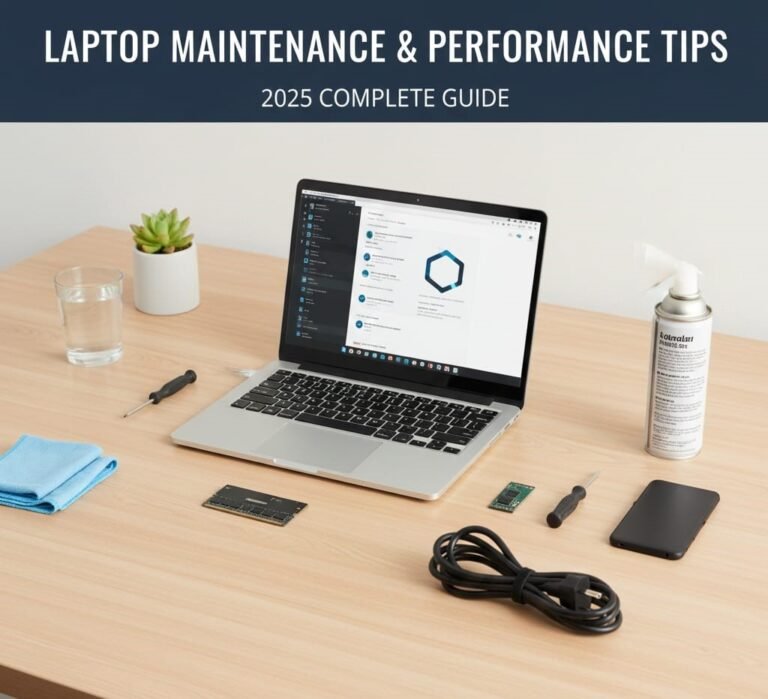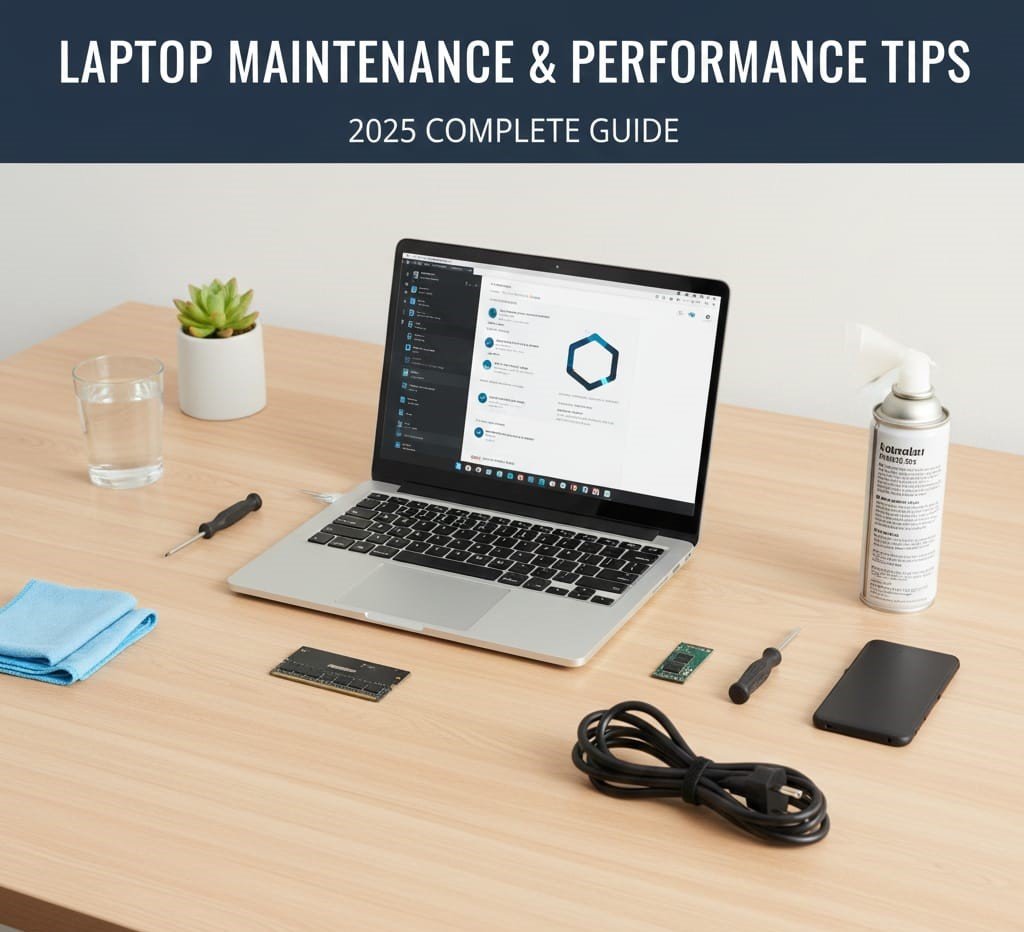
📌 Introduction
Your laptop is an investment — whether you use it for work, study, gaming, or programming. Yet many users replace laptops too soon, not because the hardware is outdated, but because of poor maintenance and bad usage habits.
The good news?
With the right laptop maintenance and performance tips, you can:
✔️ Make your laptop faster
✔️ Prevent overheating
✔️ Extend battery health
✔️ Increase lifespan by years
✔️ Avoid unnecessary upgrades or repairs
This guide covers everything you need to know — from simple daily habits to advanced performance optimization — explained clearly for beginners.
🎯 Why Laptop Maintenance Is Important
Ignoring maintenance can lead to:
❌ Slow performance
❌ Frequent crashes
❌ Overheating & fan noise
❌ Battery degradation
❌ Data loss
❌ Hardware failure
Regular maintenance keeps your laptop:
✔ Smooth
✔ Quiet
✔ Cool
✔ Reliable
🧼 SECTION 1 — Physical Laptop Maintenance (Very Important)
🧹 1. Keep Your Laptop Clean
Dust is one of the biggest enemies of laptop performance.
🧼 What Dust Causes:
- ❌ Overheating
- ❌ Loud fans
- ❌ Thermal throttling (CPU/GPU slows down)
- ❌ Shorter component life
✅ How to Clean Your Laptop Safely:
✔ Use a microfiber cloth for the screen
✔ Use compressed air for vents & keyboard
✔ Clean once every 1–2 months
⚠️ Never use water or harsh chemicals.
🌬️ 2. Maintain Proper Airflow
Laptops rely on airflow to stay cool.
❌ Common Mistakes:
- Using laptop on bed or pillow
- Blocking vents
- Using in hot environments
✅ Best Practices:
✔ Use laptop on flat, hard surfaces
✔ Keep vents clear
✔ Consider a cooling pad for gaming laptops
💻 3. Protect the Screen & Body
Laptop screens are fragile and expensive.
✔ Don’t place heavy objects on the lid
✔ Close the lid gently
✔ Use a padded laptop bag
✔ Avoid direct sunlight for long hours
💡 Scratches and pressure damage reduce resale value.
⚡ SECTION 2 — Software Maintenance for Better Performance
🚀 4. Control Startup Programs
Too many startup apps = slow boot time.
🔍 What to Do:
✔ Open Task Manager / Startup Apps
✔ Disable unnecessary startup programs
✔ Keep only essential apps enabled
💡 This alone can make your laptop feel much faster.
🧠 5. Keep Your OS & Drivers Updated
Updates improve:
✔ Security
✔ Performance
✔ Stability
🔄 What to Update Regularly:
✔ Operating System (Windows/macOS/Linux)
✔ Graphics drivers
✔ BIOS (only when needed)
⚠️ Avoid random driver sites — use official sources only.
🧹 6. Remove Unnecessary Software (Bloatware)
Many laptops come with unwanted apps.
❌ Bloatware Causes:
- Slower performance
- Background resource usage
- Storage waste
✅ Solution:
✔ Uninstall apps you don’t use
✔ Avoid installing random free tools
✔ Use trusted software only
🛡️ 7. Protect Against Malware & Viruses
Malware can destroy performance.
🧯 Best Practices:
✔ Use a reliable antivirus
✔ Avoid suspicious downloads
✔ Don’t click unknown links
✔ Scan USB drives
💡 Windows Defender is sufficient for most users.
🔋 SECTION 3 — Battery Maintenance & Health Tips
🔌 8. Charge Smartly (Very Important)
Battery health affects long-term usability.
❌ Avoid:
- Keeping laptop plugged in 24/7
- Letting battery drain to 0% often
- Overheating while charging
✅ Ideal Charging Habits:
✔ Keep battery between 20%–80%
✔ Unplug when fully charged (if possible)
✔ Enable battery optimization settings
🌡️ 9. Prevent Battery Overheating
Heat kills batteries faster than anything else.
✔ Don’t game while charging for long hours
✔ Avoid hot environments
✔ Use cooling pads if needed
🔋 10. Calibrate Your Battery (Occasionally)
Battery calibration improves accuracy.
🔄 How:
- Charge to 100%
- Use until ~10%
- Power off
- Recharge to 100%
👉 Do this once every 2–3 months, not weekly.
🚀 SECTION 4 — Speed & Performance Optimization
⚡ 11. Upgrade RAM (If Possible)
RAM upgrades give instant performance boost.
✔ 8GB → 16GB = noticeable improvement
✔ Helps multitasking, browsers, IDEs
💡 Check if your laptop supports RAM upgrades.
💾 12. Switch to SSD (Biggest Upgrade)
If your laptop still uses HDD:
❌ Slow boot
❌ Laggy apps
✅ Upgrade to SSD:
✔ Faster boot (10–15 seconds)
✔ Faster apps
✔ Quieter operation
💡 SSD upgrade is the best performance investment.
🧠 13. Monitor CPU & Memory Usage
Use built-in tools:
✔ Task Manager (Windows)
✔ Activity Monitor (macOS)
Look for:
❌ Apps consuming high CPU/RAM
✔ Close or uninstall unnecessary apps
❄️ 14. Replace Thermal Paste (Advanced Users)
For older laptops (3+ years):
✔ Thermal paste dries out
✔ Causes overheating
Replacing it:
✔ Lowers temperatures
✔ Improves sustained performance
⚠️ Recommended only if you know what you’re doing.
🎮 SECTION 5 — Tips for Gaming & Heavy Users
🎯 15. Optimize Power Settings
Use performance modes when needed.
✔ Performance mode for gaming/editing
✔ Balanced mode for daily use
✔ Power saver for travel
🖥️ 16. Use External Peripherals
✔ External keyboard & mouse reduce wear
✔ External monitor improves productivity
✔ Proper desk setup improves airflow
🧊 17. Monitor Laptop Temperatures
Ideal temperatures:
- CPU: 60–85°C under load
- GPU: 65–88°C under load
If temps exceed this:
❌ Performance drops
❌ Hardware lifespan shortens
🧠 SECTION 6 — Data Safety & Long-Term Care
💽 18. Backup Your Data Regularly
Hardware can fail anytime.
✔ Backup Options:
✔ External hard drive
✔ Cloud storage
✔ System image backups
💡 Backup = peace of mind.
🔐 19. Secure Your Laptop
✔ Use strong passwords
✔ Enable encryption
✔ Lock laptop when unattended
🧳 20. Travel & Storage Tips
✔ Shut down before travel
✔ Store in cool, dry place
✔ Avoid leaving in cars
✔ Use padded sleeves
❌ Common Laptop Maintenance Mistakes
🚫 Ignoring overheating
🚫 Never cleaning dust
🚫 Using laptop on bed
🚫 Installing too many apps
🚫 Overcharging constantly
🚫 Skipping updates
🧾 Quick Laptop Maintenance Checklist
✔ Clean vents monthly
✔ Update OS regularly
✔ Check startup apps
✔ Maintain battery health
✔ Monitor temperatures
✔ Backup data
❓ Frequently Asked Questions (FAQ)
❓ How often should I clean my laptop?
✔ Every 1–2 months
❓ Does shutting down improve laptop life?
✔ Yes — it reduces heat & wear
❓ Is keeping laptop plugged in bad?
✔ Not always, but avoid constant 100%
❓ How long should a laptop last?
✔ 4–7 years with good maintenance
🏁 Final Verdict
Laptop maintenance is not complicated — it’s about consistent good habits. If you clean your laptop, manage software properly, protect the battery, and optimize performance, your laptop will stay fast, cool, and reliable for years.
📌 A well-maintained laptop performs better than a neglected new one.
About the Author